PocketBuilder / Installation manual
Install with
your eyes open.
A step-by-step guide for the current PocketBuilder preview. Start with normal installation and any offered scan. If Play Protect blocks it, read the risks below before choosing whether to proceed.
We know we’re asking for your trust.
Installing an app outside Google Play—and temporarily pausing a security check—is a significant decision. It’s reasonable to hesitate.
I’m Jesper Adolfsson, the developer behind PocketBuilder. This is an early preview that builds Android apps on your phone and lets you install them. It also offers optional accessibility-based tools for testing those apps.
Pausing Play Protect temporarily reduces your device’s protection. Only proceed if you’re comfortable, download from pocketbuilder.app, and turn protection back on immediately afterward. If you’re unsure, please wait or contact me at Contact Us—there’s no pressure to install.
These screenshots are from my own phone and are shared with my permission. Android and Play Store labels may differ on your device.
Start here / Keep protection on
First, download the APK
Use the download button and, if prompted, enter the preview code shared with you. If your browser asks whether to keep the APK, read and accept the prompt to finish downloading—even if progress already shows 100%. Open the file from Downloads.
If Android asks, allow your browser to install unknown apps, then return to the installer. This permission is separate from Play Protect. If normal installation works, skip the pause steps and keep protection enabled.
If a warning identifies malware, or your device is managed and prevents installation, stop and contact us rather than bypassing further protections. We have observed blocks on test devices; we have not established that pausing is necessary on every phone or that installing other apps is the sole reason for a warning.
If you choose to proceed / 7 screenshots
If blocked: the temporary-pause procedure
Open Google Play Store
Open the Play Store app on your phone, highlighted in the screenshot.
SCREENSHOT / 01 OF 07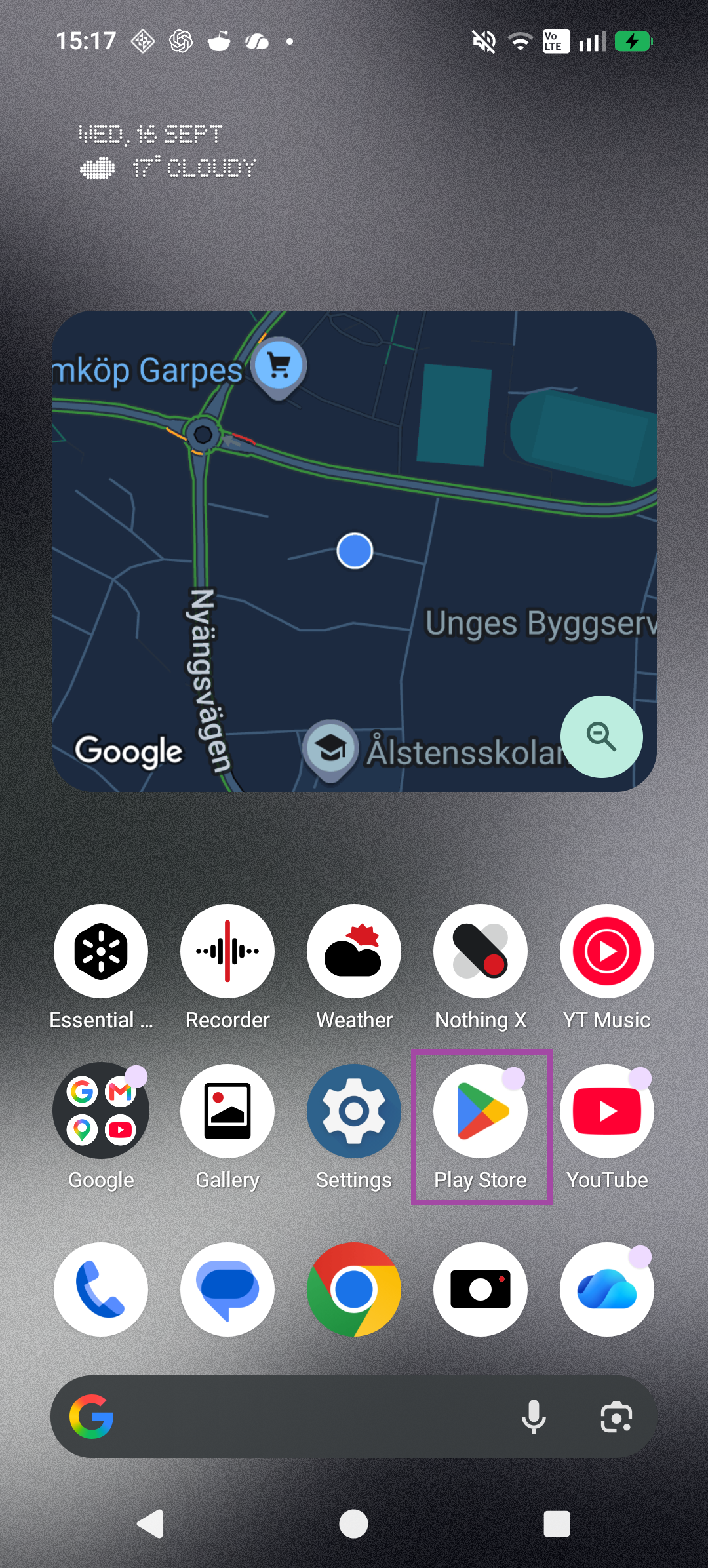
Screenshot 1 · Tap to view full size Open your profile menu
Tap your profile picture in the top-right corner of Google Play Store.
SCREENSHOT / 02 OF 07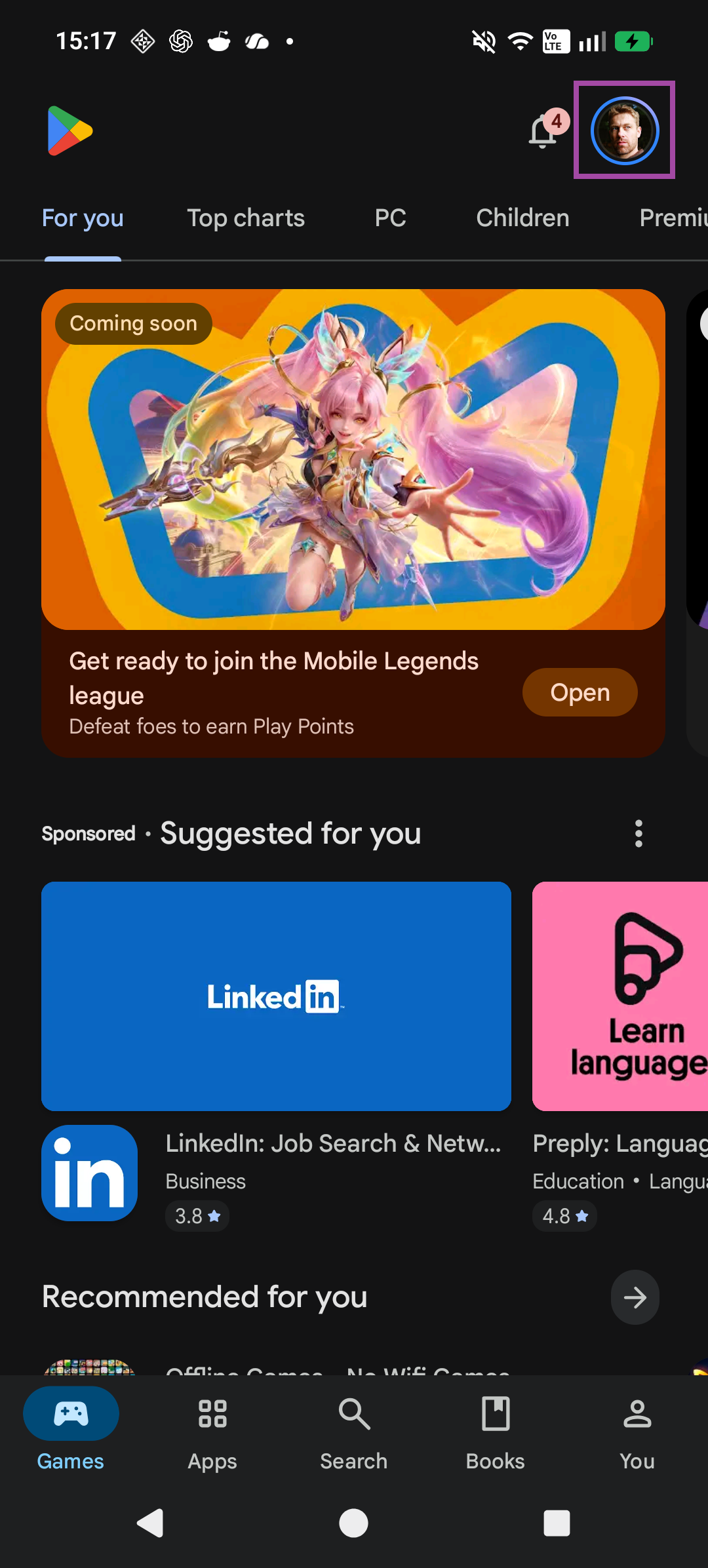
Screenshot 2 · Tap to view full size Select Play Protect
Tap Play Protect in your account menu.
SCREENSHOT / 03 OF 07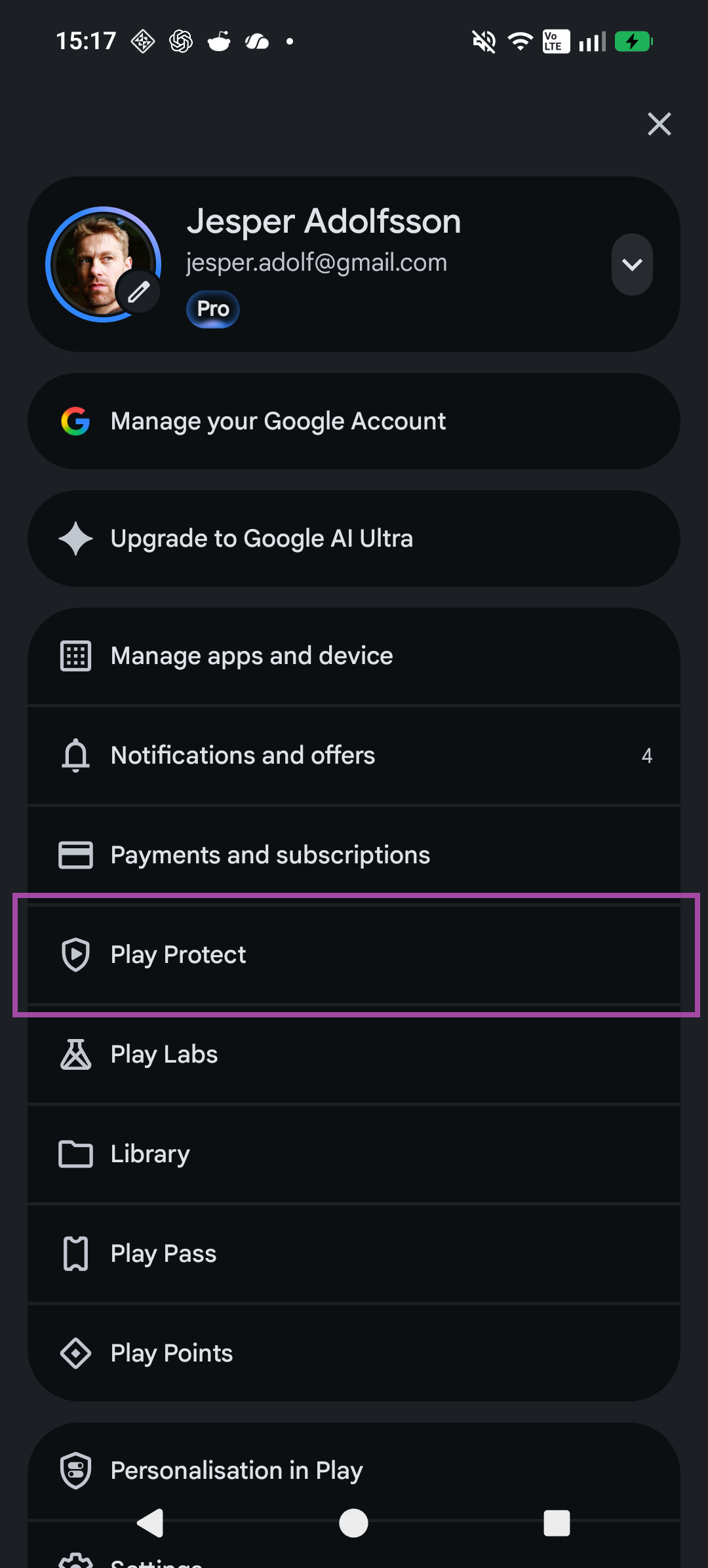
Screenshot 3 · Tap to view full size Open Play Protect settings
Tap the Settings gear in the top-right corner. Remember this screen: after installation, you can return here and tap Scan.
SCREENSHOT / 04 OF 07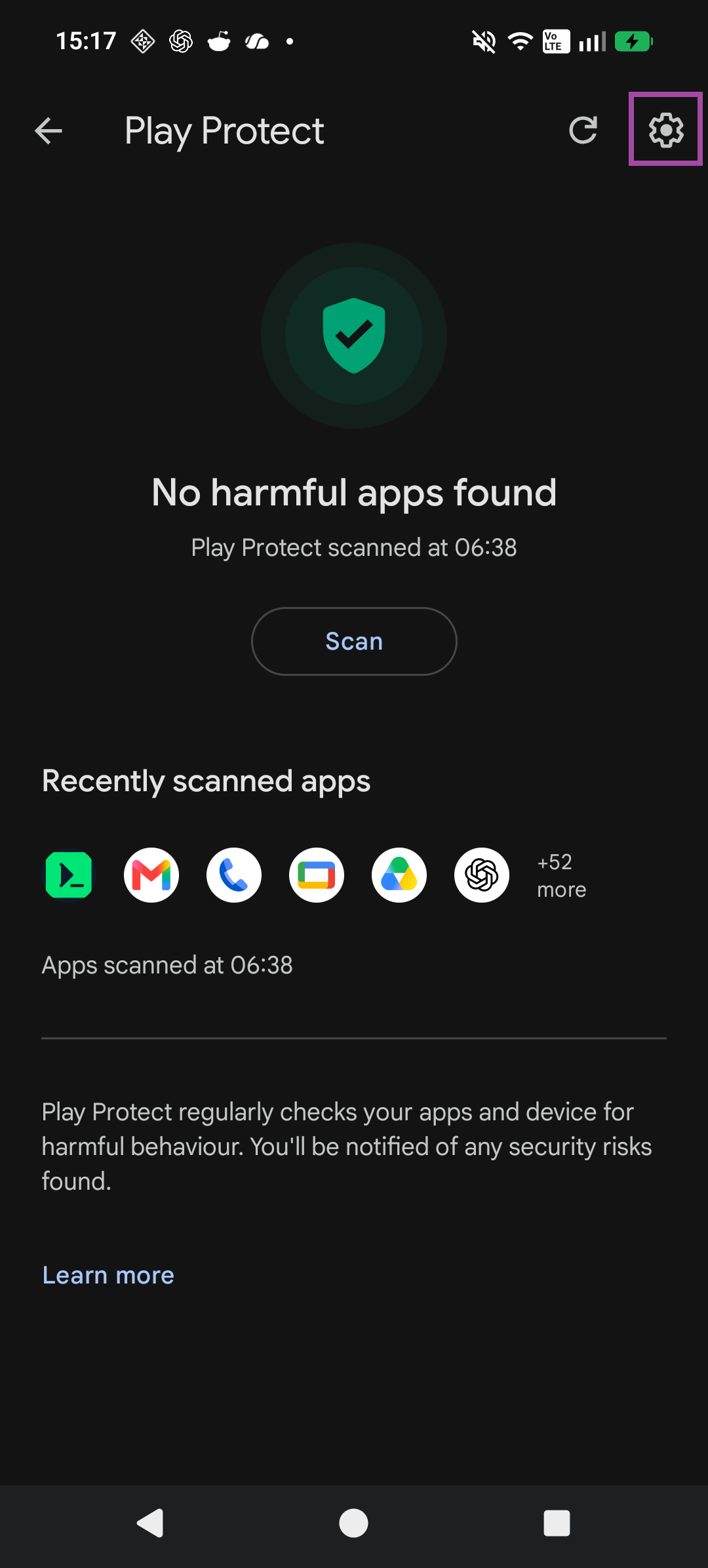
Screenshot 4 · Tap to view full size Open the scanning options
Tap the Scan apps with Play Protect switch. Read the warning before deciding whether to continue. Pausing reduces protection for apps outside Google Play.
SCREENSHOT / 05 OF 07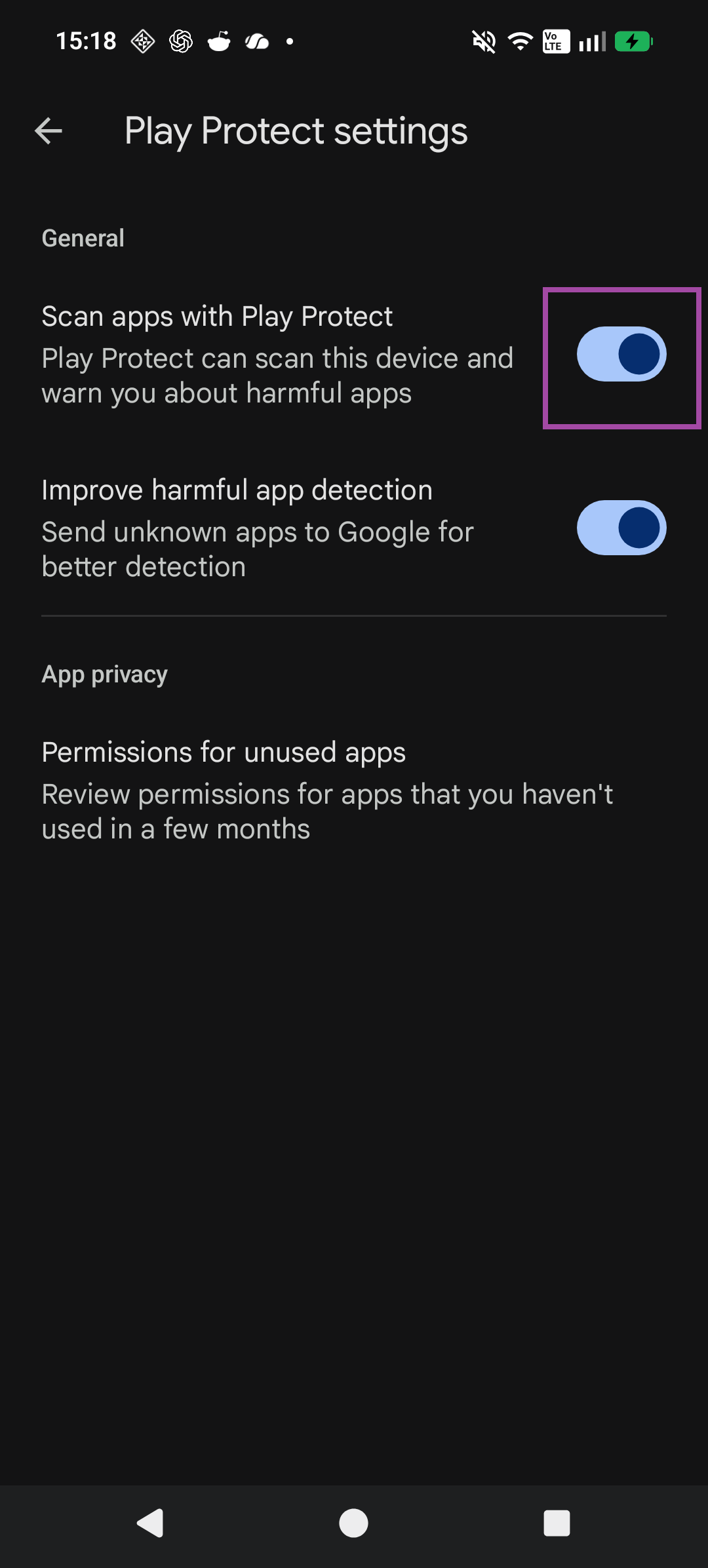
Screenshot 5 · Tap to view full size Prefer Pause, not Turn off
If you choose to proceed, select Pause rather than Turn off. On the phone shown here, scanning automatically resumes the following day. That is a useful fallback, but turn it back on yourself immediately after installation. Options and timing can vary by device.
Automatic resumption is a fallback.
Turn scanning back on immediately after installation →SCREENSHOT / 06 OF 07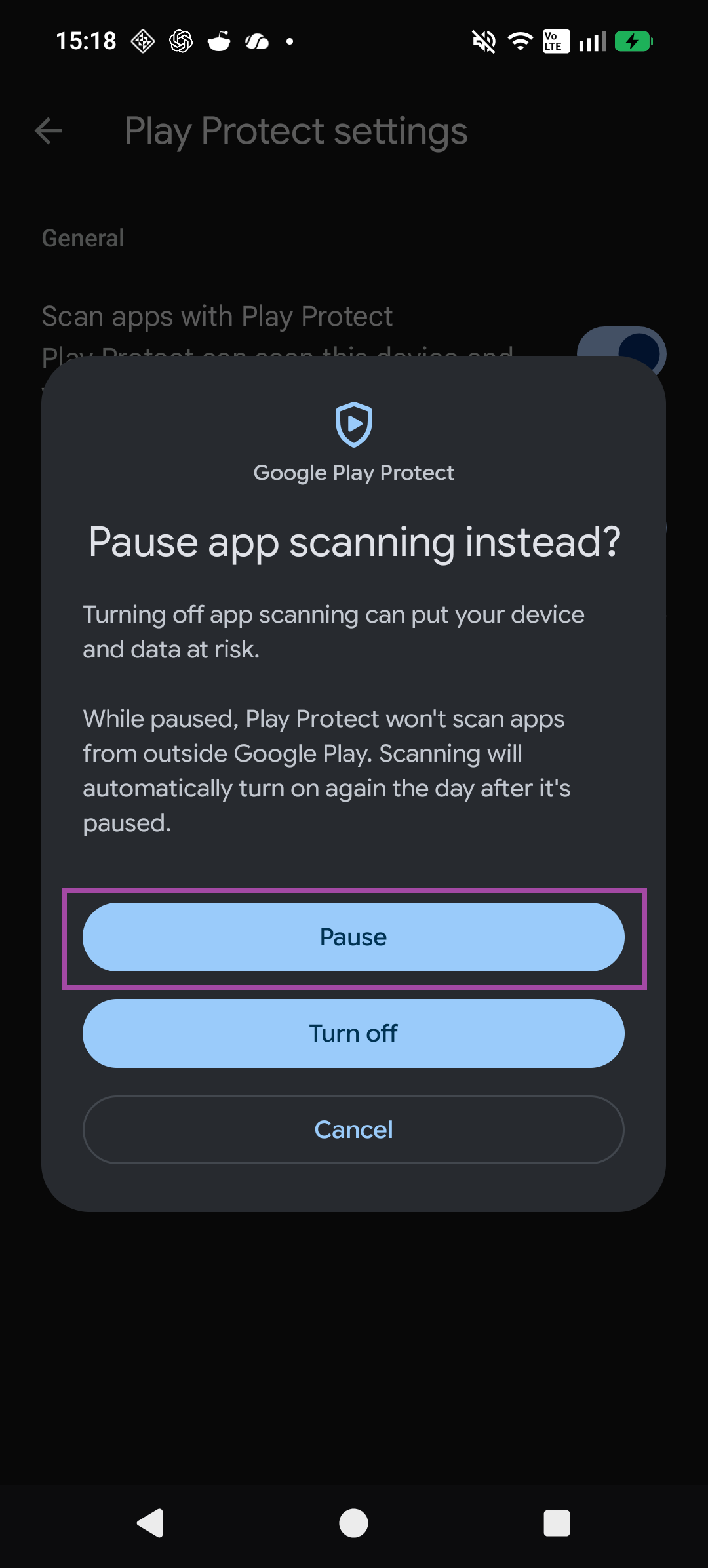
Screenshot 6 · Tap to view full size Confirm the pause, then install
The screen now says app scanning is paused and will turn on again tomorrow. Return to your browser’s Downloads and open the PocketBuilder APK. Do not install other apps while protection is paused.
Next: restore protection and scan →SCREENSHOT / 07 OF 07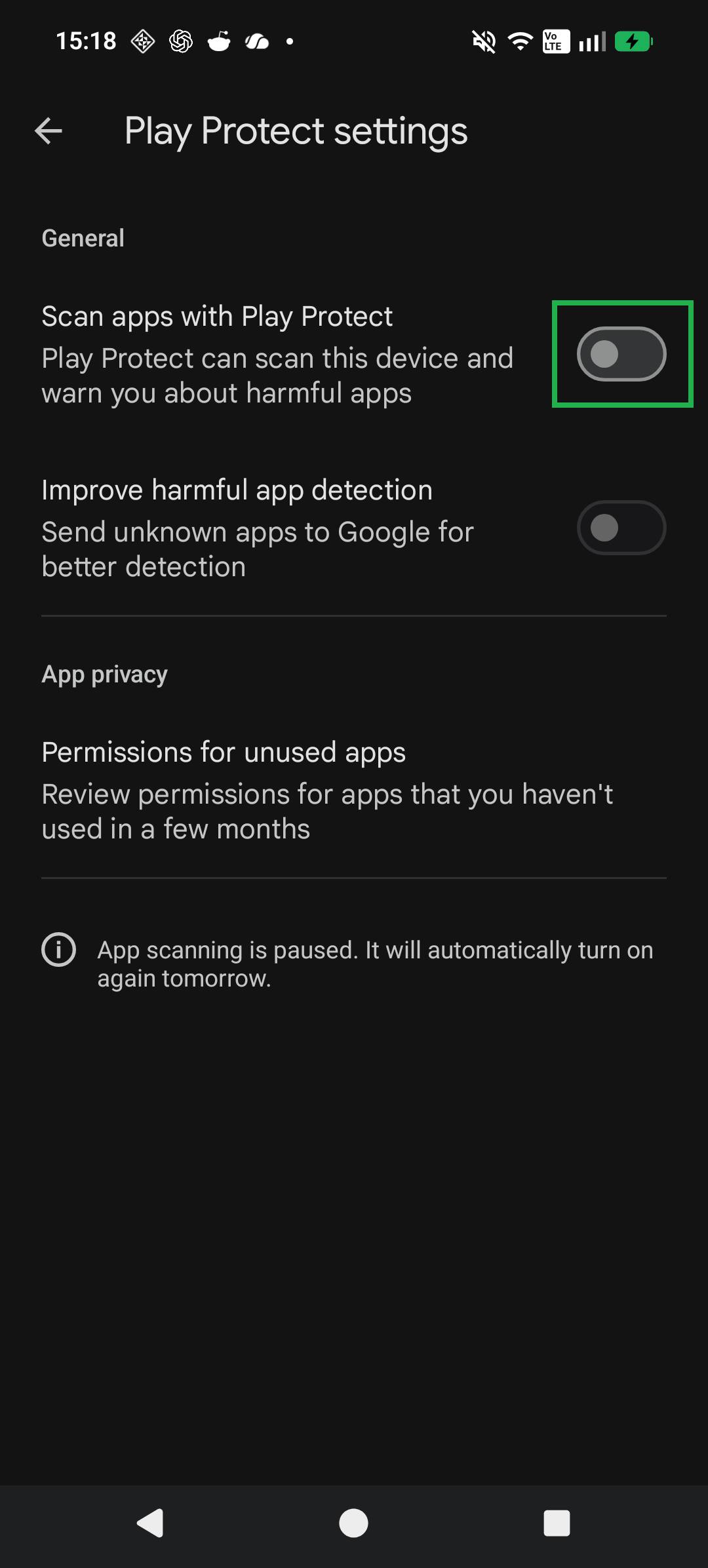
Screenshot 7 · Tap to view full size
After installation / Don’t skip this
Immediately restore protection and scan
- Finish installing PocketBuilder, then return to Play Store → profile picture → Play Protect → Settings.
- Turn Scan apps with Play Protect back on immediately, even if you chose Pause. Don’t wait until tomorrow. Restore Improve harmful app detection if you had it enabled.
- Return to the Play Protect screen shown in screenshot 004 and tap Scan. Review the result and any warnings.
- Optionally remove your browser’s Install unknown apps permission afterward.
A scan is not a safety certificate. Play Protect checks installed apps, including sideloaded apps, but a clean result cannot prove that an app’s only sensitive capability is installing other apps. PocketBuilder also has optional accessibility-based testing. Scanning may flag the app again; take warnings seriously and contact us rather than repeatedly disabling protection.
You can review granted permissions in Android’s Settings → Apps → PocketBuilder → Permissions. Also check Special app access → Install unknown apps and Accessibility for separately managed access. Menu names vary. These screens show permissions, not a complete audit of app behavior.
Google’s Play Protect guidance · Google’s explanation of installation warnings
Your first launch
Connect to Wi-Fi or mobile data. Enter your email, request and verify the code, then choose a public developer name and password. Existing users can sign in.
During early testing, new accounts await administrator approval and start with zero credits. You can explore the app and browse the store while you wait. Approval and credit grants are separate; the app refreshes your status automatically while open.
Questions? Contact Jesper · Back to PocketBuilder